Hub and spoke networks on Azure have a well-known path around the firewall. Azure creates a system route for every peering, and because that route is more specific than a summarised user-defined route, it wins. Since October 2026 this can be switched off in a public preview, directly on the route table.
The problem: the longest match wins
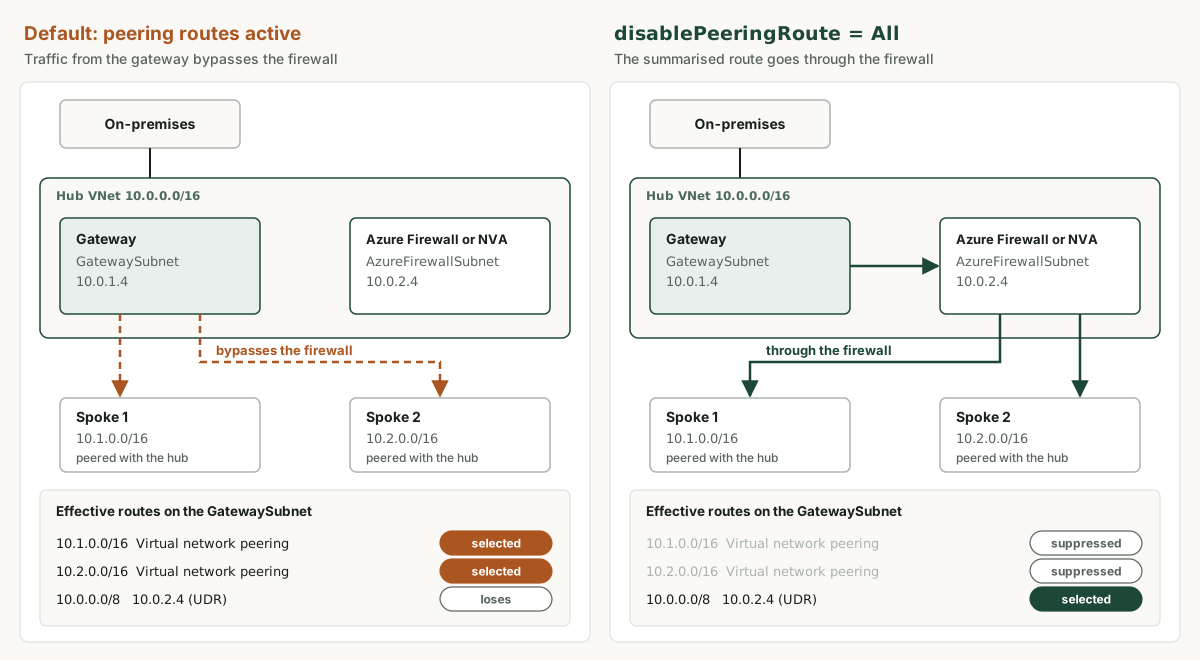
Azure selects routes by longest prefix match. In Microsoft’s example, a hub with 10.0.0.0/16 is peered with spokes 10.1.0.0/16 and 10.2.0.0/16. This creates system routes in the hub for both spokes with the next hop “Virtual network peering”. A user-defined route for 10.0.0.0/8 to the firewall loses to both.
As a result, traffic from on-premises arriving through the VPN or ExpressRoute gateway in the hub goes straight to the spokes instead of through the firewall. The usual fix so far has been a separate route per spoke in the GatewaySubnet route table. With many spokes this becomes ongoing work, and every forgotten route is a gap in inspection.
What the preview changes
Route tables have a new property, disablePeeringRoute. With the value All, Azure suppresses the IPv4 and IPv6 peering system routes for supported workloads on every subnet associated with the route table. The peering itself stays in place. The default value is None.
In the example, a single summarised route 10.0.0.0/8 to the firewall is then enough, and new spokes in the same address range are covered automatically. Combined with advertised gateway prefixes, the advertisement towards on-premises can also be reduced to a few summarised prefixes.
The setting does not create a replacement route. Without a matching user-defined route, the subnet loses its path to the spokes.
Limits of the preview
- The firewall or NVA must be in the same virtual network as the source network interface. A next hop in a peered virtual network is not supported. In a classic hub and spoke topology with the firewall in the hub, the capability therefore applies to subnets in the hub such as the GatewaySubnet, not to subnets in the spokes.
- Workloads on Azure BareMetal Infrastructure ignore the setting and keep using longest prefix match. Other supported workloads in the same subnet use the summarised routes as intended.
- The setting is managed on the route table, not through Azure Virtual Network Manager routing rule collections.
- Terraform supports it only through the AzAPI provider, not AzureRM. REST, ARM and Bicep require API version 2025-07-01 or later.
- The preview feature Microsoft.Network/AllowDisablePeeringRoutes must be registered in the subscription that contains the route table.
Set up and verify
With the Azure CLI the setup looks like this:
az feature register --namespace Microsoft.Network --name AllowDisablePeeringRoutes
az feature show --namespace Microsoft.Network --name AllowDisablePeeringRoutes --query properties.state --output tsv
az provider register --namespace Microsoft.Network

az network route-table update \
  --resource-group "<resource-group>" \
  --name "<route-table-name>" \
  --disable-peering-route All
Run az provider register once the state shows Registered. In PowerShell (Az.Network 8.1.0 or later), set the route table’s DisablePeeringRoute property to All and save it with Set-AzRouteTable. In the portal the option is under route table, Configuration, “Enable peering routes (Preview)”. The value None reverts the change.
Afterwards, check the effective routes of a network interface in the affected subnet. Entries with the next hop “Virtual network peering” should be gone for supported workloads, and the user-defined route to the firewall should apply.
What I would check before switching it on
- Create and verify the user-defined routes first, then disable the peering routes. In the reverse order the subnet is briefly left without a path to the spokes.
- Do not enable it on the route table of the firewall subnet. The firewall itself needs the peering routes to reach the spokes.
- The GatewaySubnet has its own rules. For ExpressRoute gateways, for example, Microsoft documents that user-defined routes for 0.0.0.0/0 are not supported there. A summarised route such as 10.0.0.0/8 is not affected.
- Mind the return path. A stateful firewall needs symmetric traffic. If the inbound path goes through the firewall, the route tables in the spokes must send the return traffic to on-premises through it as well.
- Try it in a test subscription first. Preview features can change before general availability and are subject to the supplemental terms of use for previews.
Checking effective routes against the plan
Whether traffic in an established hub and spoke environment really passes through the firewall only becomes clear by comparing the address plan, route tables and effective routes. An architecture review checks exactly that, including whether this preview reduces maintenance or another pattern fits better. Your team makes the routing changes.
Frequently asked questions
Does disablePeeringRoute delete the VNet peering?
No. Only the system routes Azure creates for the peering are suppressed. The peering stays configured and keeps working through user-defined routes.
Does the setting cover IPv6?
Yes. With the value All, Azure suppresses peering routes for both IPv4 and IPv6.
Can I disable peering routes in the spokes as well?
The setting can be applied to any route table. During the public preview, however, the next hop must be in the same virtual network as the source. With the firewall in the hub, that is not supported for subnets in the spokes.
How do I revert the setting?
Set the value to None, in the Azure CLI with --disable-peering-route None, or select “Enable peering routes (Preview)” in the portal. Azure then recreates the system routes.
Sources (as of 23 October 2026)
- Microsoft Learn: Azure Virtual Network Peering, section “Disable peering route propagation (preview)”
- Microsoft Learn: Configure disable peering route propagation
- Microsoft Learn: Azure virtual network traffic routing, longest prefix match
- Microsoft Learn: Advertised gateway prefixes overview
- Microsoft Learn: About ExpressRoute virtual network gateways
- Azure Updates: Public Preview: Disable VNet peering route (October 2026)